What you will make
A short film assembled from three to five clips, with music and a simple title. Use footage you already own or have permission to edit. Keep the first sequence to about 20–30 seconds so you can explore the whole process without a long finishing pass.
Meridian is currently a development preview. The public Mac App Store download is coming soon; these lessons describe the current preview interface.
Explore a finished project first
Choose Help → Load Demo Project… to download the one-minute Make Your Move project. Load Demo opens it directly. Workspace Guide opens the online introduction to the panels. Each load creates a fresh working copy and preserves earlier copies. After the first download, the same demo can be loaded offline.
For a smaller project without a download, choose Help → Open Offline Sample. Play with Space and scrub its title-and-color sequence. Preview mode lets you explore existing projects; creating, editing, importing, and rendering exports require verified subscription access. Both billing plans unlock the same editing features, and Apple confirms any trial eligibility and current pricing.
Use Help → Workspace Guide to learn the controls on meridianeditor.com. The online workspace guide explains the browser, viewer, timeline, inspector, and finishing layouts. You can keep it open beside Meridian while you work.
Create and save
- Open Meridian and choose File → New Project (
⌘N). - Give the project a useful name, such as “Coastal afternoon.”
- Save with File → Save Project (
⌘S) in a folder you can find again. Meridian projects use the.meridianextension. - Put your source clips and music in a stable folder alongside the project. Keep them there while you edit; a saved project refers to its media.
A project contains your library and sequences. A sequence is an individual timeline, so a project can hold different edits of the same material.
Get your bearings
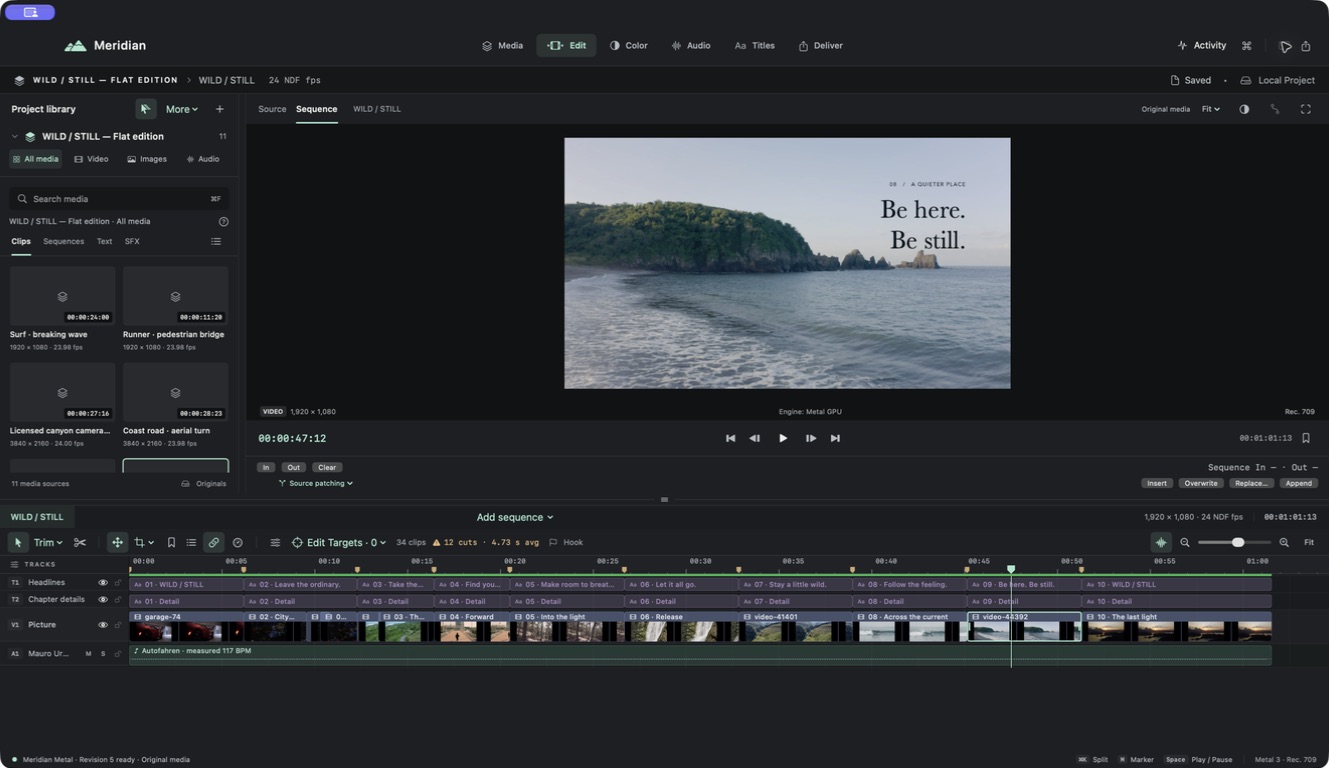
The browser on the left holds your media. The viewer shows either a source or your sequence. The timeline assembles the story, and the inspector changes the selected item. Choose Media or Titles for the browser. Edit, Color, and Audio change the tools around the same sequence; Export at the top right opens delivery settings without losing your place.
Before you continue
Confirm that the project has a name and shows a saved state. If a save fails, keep the project open and use the offered retry or save-a-copy path. Next, bring your footage into the library.